Trivia Night — Question Builder Guide
This guide covers everything you can do on the Question Builder screen: creating/editing questions, adding answers, using AI tools (question + image), printing/exporting, and managing metadata like category, tags, difficulty, and language. Building the full Trivia Set (rounds, pacing, host voice, etc.) is covered separately in Building Custom Trivia Sets. And if you want to see how questions appear during gameplay, check Trivia Night Player.
What the Question Builder is (and isn’t)
The Question Builder is your question “library” screen—where you create, save, search, and export individual trivia questions. Later, you’ll pull questions from this library into a full trivia set (that part is in Building Custom Trivia Sets).
A question in the library can include:
- Question text
- Category
- Tags
- Language
- Difficulty
- Explanation (shown after answering / used for host context)
- 2+ answers (with at least one marked correct)
- Optional image (uploaded or AI-generated)
AI Tokens Use
The AI features on this screen—such as generating questions or creating images—use AI tokens. While AI is never required to use the Question Builder (you can create, edit, and manage all questions manually), it is extremely helpful for speeding up workflows, generating inspiration, and maintaining consistency at scale. A single AI-generated question or image typically uses only a small number of tokens, but these credits help us cover the real AI infrastructure and processing costs behind the service. You can view your remaining token balance by expanding the menu in the upper-left corner of the screen, and you can review an audited breakdown of usage or purchase additional tokens at:
Quick start: create your first question
Open the Question Builder screen
- You’ll see your existing questions (if any) and controls to create/search/filter.
Click “New Question”
- A blank question editor opens.
Fill in the required fields
- Category
- Question
- Explanation
- Answers (at least 2)
- Mark at least one answer as Correct
(Optional) Add tags, difficulty, language, and an image
- These improve search, filtering, and how your set can be themed later.
Click “Save”
- If anything required is missing, you’ll get an error listing what to fix (for example: missing explanation, fewer than 2 answers, no correct answer, etc.).
The Question Editor — field-by-field (detailed)
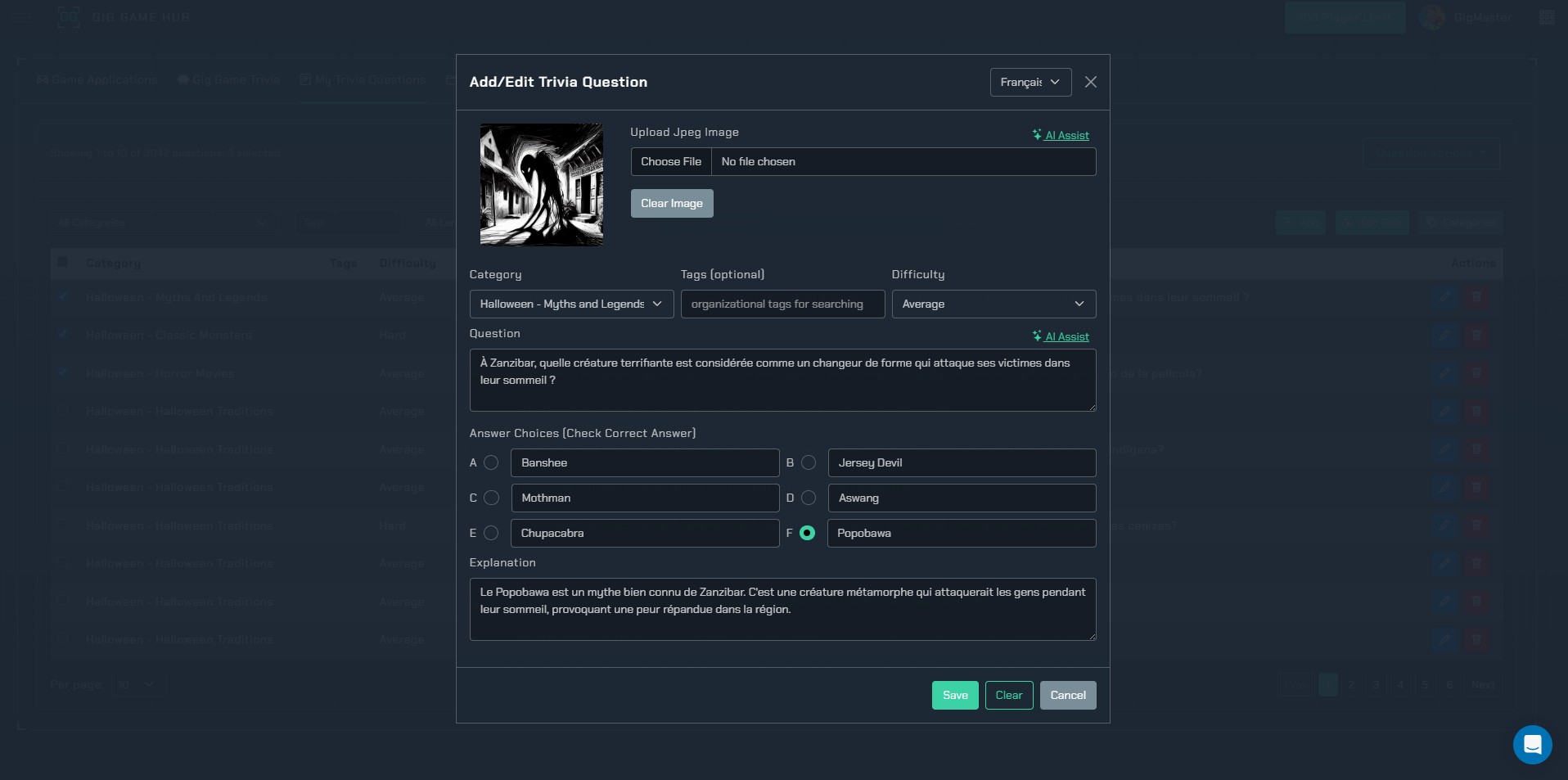
1) Category (required)
What it does: Organizes your questions and helps Trivia Sets build category-based rounds/themes later.
How to use it well
- Keep categories consistent (e.g., use “Movies” instead of mixing “Film”, “Cinema”, “Movies”).
- If you want subtopics, use Tags for the finer detail.
The system supports creating and managing categories (including duplicate-name checks per account).
2) Tags (optional, but recommended)
What it does: A lightweight way to label questions for search and grouping (examples: 80s, award-winners, space, animals, boss-battle).
Tips
- Use short, consistent formats (commas or space-separated—whatever your UI standard is).
- Use tags for themes you might want to quickly assemble later (holiday night, fandom night, local city night, etc.).
Search supports filtering by tags.
3) Language (recommended)
What it does: Marks what language the question is written in, and enables language-based searching/filtering.
Best practice
- Set the language before using AI generation so the generated content matches your event’s audience.
Search supports filtering by language.
4) Difficulty (optional, but very useful)
What it does: Helps you balance a trivia night (warm-up questions, mid-round questions, stumper questions).
Difficulty is stored with the question and is also used by AI generation.
5) Question text (required)
What it is: The prompt players will see/hear.
Make it great
- Keep it one clear idea
- Avoid ambiguity (“Which of these…” without clear options)
- Avoid trick wording unless that’s your format
6) Explanation (required)
What it is: The “why this is correct” fact that shows after the question (and helps hosts).
Strong explanations
- Are short and factual
- Don’t rely on answer letters (“A is correct…”) because answers may be shuffled in some workflows
- Provide a satisfying “aha” moment
Explanation is required to save.
7) Answers (required: 2+ answers, 1+ correct)
Rules
- You must add at least two answers
- You must mark at least one as correct
Best practices
- Keep answers parallel in style and length
- Make wrong answers plausible (but not confusingly close unless you want a harder question)
- Avoid “All of the above” unless your format expects it
8) Image (optional) — upload or AI-generate
Images help questions pop on big screens and keep energy up during play.
You can:
- Upload/select an image for the question
- Remove an image later (the system will delete the stored asset when you save)
AI tools on the Question Builder screen
Your Question Builder includes AI assistance for two big jobs:
- Generate a question (from a category/topic + difficulty + language)
- Generate an image (from your question + an art style + optional suggestion)
Before you use AI: token balance and “why it may fail”
AI features require a minimum token balance. If you don’t have enough tokens, the system will stop and show a message like “Minimum AI token requirements not met.”
AI: Generate a question (step-by-step)
Use this when you want the system to draft a complete question with answers and an explanation.
Set Category
(Optional) Set Difficulty
(Optional) Set a subject/topic
- Example: “Volcanoes”, “Taylor Swift”, “World Cup”, “Greek Mythology”
Set Language
Click AI Assist → Question
Review what the AI generates:
- Question text
- Difficulty rating
- Multiple answer choices (with one correct)
- Explanation
Edit for tone/accuracy
- Tighten wording, tweak distractors, add context to explanation.
Save
How it works (so you can troubleshoot better):
- The system may generate multiple “fact statements” first, then fact-check them and choose one that validates before building the final question.
- It also avoids certain sensitive areas in its fact generation instructions (for example political/religious/socially sensitive topics).
AI: Generate an image (step-by-step)
Use this to create a visual that matches the vibe of your question without giving away the answer.
Make sure your question text is filled in (or at least close)
Choose an Art Style
- Examples include things like anime, noir, watercolor, pixel-art, surrealism, whimsical surrealist collage, and many more.
(Optional) Add an image suggestion
- Example: “Show a stormy sea at night” / “Make it neon retro”
Click AI Assist → Image
Preview the result and decide:
- Keep it (and save the question)
- Regenerate (change your suggestion or style)
- Remove it (if you decide to go no-image)
Notes
- The generator is instructed to avoid things like gore/violence, trademark content, and other restricted imagery.
Searching and managing your question library
The Question Builder is designed to scale up to hundreds (or thousands) of questions.
Search + filters you can expect
- Text search / keyword filter
- Category filter
- Language filter
- Tags filter
- Pagination (page + page size)
Workflow tip: Use a consistent tag scheme (like theme:space, event:halloween, difficulty:hard) so assembling sets later becomes fast.
Bulk Question Creation (AI-Assisted)
Bulk question creation lets you generate multiple questions at once using AI, saving significant time when building packs, themes, or weekly content.
How bulk creation works
Open the AI Question Generator
Choose:
- Category
- Difficulty
- Language
- Optional topic or subject
Set the number of questions to generate
Click Generate
The system will create a batch of questions that:
- Share a consistent tone and difficulty
- Avoid duplication within the same category
- Include answers and explanations
Best practices
- Start with 1–2 questions to validate tone and difficulty
- Once satisfied, scale up to 10–20 at a time
- Use tags after generation to group questions by set or theme
⚠️ Bulk generation uses more AI tokens than single-question creation. Testing first helps avoid wasted tokens.
Selecting Questions (Single, Page, and Bulk)
The Question Builder includes powerful selection tools so you can work with many questions efficiently.
Selecting questions
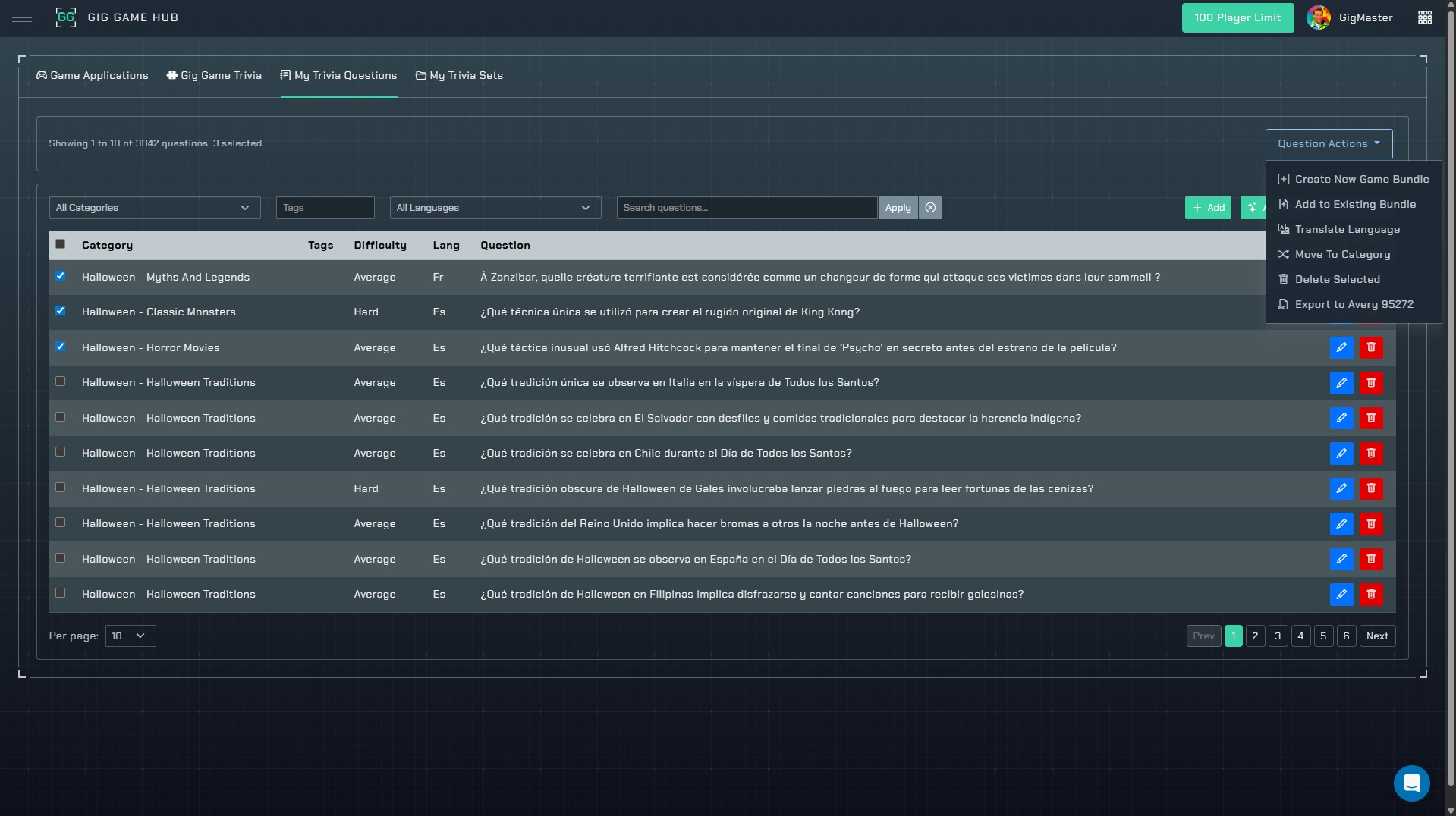
- Select individual questions using the checkbox on each row
- Select All (per screen) selects every question currently visible on the page
- Deselect All clears the current selection
Important behavior to know
- Selection is page-based, not global
- This prevents accidental bulk actions across very large libraries
Selection count indicator
At the top of the screen, you’ll always see:
- How many questions are selected
- How many total questions are visible on the page
This gives you clear confirmation before running any bulk operation.
Bulk Operations (Actions on Selected Questions)
Once one or more questions are selected, bulk actions become available. These tools allow you to organize, reuse, and export content quickly.
Create New Game Bundle
Creates a new game bundle using the selected questions.
Use this when
- You want to turn a group of questions into a brand-new trivia game
- You’re starting a themed or seasonal pack from scratch
The selected questions become the foundation of the new bundle.
Add to Existing Bundle
Adds the selected questions to an existing game bundle that has not yet been published.
Why unpublished only?
- Published games are locked to preserve consistency for live or shared events
- This prevents accidental changes to active content
If a bundle doesn’t appear in the list, it’s already published.
Translate Language
Automatically translates all selected questions into another supported language.
What gets translated
- Question text
- Answers
- Explanations
What stays the same
- Category
- Tags
- Difficulty
This is ideal for:
- Multilingual events
- Reusing content across regions
- Creating parallel language sets quickly
Move to Category
Moves all selected questions into a different category.
Helpful when
- You imported or generated questions under the wrong category
- You’re cleaning up or consolidating your library
- You’re reorganizing legacy content
Tags remain unchanged unless you edit them manually.
Delete Selected
Permanently deletes all selected questions.
Important
- This action cannot be undone
- Questions removed here are deleted from your library entirely
Use this to clean up test questions, duplicates, or outdated content.
Printing and Exporting (Avery 95272)
If you want a physical host copy or printed table cards, you can export selected questions to a print-ready PDF formatted specifically for Avery 95272 cards.
This format is ideal for:
- Physical trivia cards
- Table prompts
- Host reference cards
Each exported card includes:
- Question text
- Answer options
- An associated image (if available, otherwise a fallback image)
A downloadable PDF is generated for easy printing.
Export Questions to PDF (Step-by-Step)
In your question list, select the questions you want to export
Click Export / Print
The system generates a PDF formatted for Avery 95272 cards
- Images are included when available, with a fallback image if none is set
Download or open the PDF and print as needed
Behind the scenes, this export is handled automatically by the question-to-PDF generator, so no additional setup is required.
Common save errors (and how to fix them fast)
If your question won’t save, it’s almost always one of these:
- Missing question text → add the main question prompt
- Missing explanation → add the fact/why
- Missing category → choose/create one
- Fewer than 2 answers → add more choices
- No correct answer selected → mark at least one answer as correct
Practical “build better trivia” tips
- Write explanations like a host would read them: one or two clean sentences.
- Use images as misdirection (in a fun way): match the theme, not the exact answer.
- Keep categories broad, tags specific: “History” as category; “Rome”, “WWII”, “Presidents” as tags.
- Balance difficulty intentionally: don’t let a round accidentally become all stumpers.
Pro Tips from the Creator: Building Better Trivia Game Shows
The tips below come straight from real, hands-on use of the Trivia Night builder—the same workflow used to create weekly and seasonal trivia packs. These aren’t theory or marketing bullets; they’re practical habits that save time, AI tokens, and frustration, while producing more consistent, professional game shows.
Think of this as how the builder is meant to be used in the real world.
Categories Define the Topic — Tags Define the Context
When you’re creating questions that share a subject but may appear in different trivia sets, resist the urge to create lots of near-duplicate categories.
Do this:
- One clear category (e.g.
Science) - Use tags to organize usage (
SummerPack,Set1,Weekly,KidsNight)
Avoid this:
Trivia Set 1: ScienceTrivia Set 2: Science
Why this matters
- The AI question generator actively tries to avoid duplicates within the same category.
- Fragmented categories trick the AI into thinking it’s working on totally different topics—leading to repeated or similar questions.
Rule of thumb
- Categories = subject matter
- Tags = organizational grouping
Cleaner data → smarter AI → better trivia.
Test Small, Scale Smart
AI is powerful—but every generation costs tokens. The fastest way to waste tokens is going big before you know what works.
Best workflow
Generate 1–2 questions first
Review:
- Tone
- Difficulty accuracy
- Answer quality
- Image style (if used)
Adjust prompts, tags, or difficulty
Only then scale up to 10–20 questions
Pro mantra
“Prototype with 1. Produce with 20.”
This keeps experimentation cheap and predictable.
Name Your Game Before You Build It
Before generating dialog or AI-driven host content, make sure your game has its final title.
Why?
The AI dialog builder references the game name in host speech.
If your working title is something like “Placeholder”, the AI will happily welcome players to:
“Welcome to Placeholder!”
Funny once. Costly every time.
Set the name first
- Especially for themed events
- Especially before dialog or voice generation
Your wallet will thank you.
Build Dialog First — Voice and Publish Later
When turning questions into a full show, separate writing from audio.
Recommended flow
Generate dialog only
- Leave Voice unchecked
- Leave Publish unchecked
Review the written dialog:
- Tone
- Pacing
- Clarity
Adjust or regenerate dialog sections as needed
Once it feels right:
- Generate voices selectively
- Then publish
Why this works
- Dialog generation uses far fewer tokens than voice rendering
- Fixing tone issues in text is cheap
- Fixing them after audio generation is expensive
This gives you a creative safety net without burning credits.
Situations Guide the Tone — Not the Script
Situational settings are one of the most powerful (and misunderstood) tools in the dialog builder.
Think of situations as directing an actor, not writing stage directions.
Good situationals
- “Sound excited and upbeat”
- “Keep a playful, game-show energy”
- “Calm and suspenseful”
Bad situationals
- “Laugh after every line”
- “Pause for 3 seconds”
- “Say wow before each question”
Why?
- Situations apply everywhere unless overridden
- Overly specific instructions get repeated endlessly
Golden rule
Situations should set the vibe, not dictate behavior.
Always test one or two dialog generations before committing to a full build.
If the Game Doesn’t Load, Just Refresh
Very rarely, a trivia show may not load on the first attempt—usually due to a slow or interrupted connection while assets (images, music, voices) are caching.
Fix
- Refresh the page (F5)
Once assets are cached, the game almost always loads normally.
This isn’t a broken game—just a first-load hiccup.
Explore more
- Build full Trivia Sets (rounds, sequencing, host voice, publishing): Building Custom Trivia Sets
- See how your questions run in the player engine: Trivia Night Player