Welcome to the Trivia Night Player
Trivia Night is a live, hosted trivia experience designed for venues, events, classrooms, and parties. One person hosts the game, a big screen displays the action, and players join instantly from their phones—no app download required.
What is the Trivia Night Player?
The Trivia Night Player is a three-screen interactive game system:
- You (the Host) control the flow of the game
- A shared screen (HUD) shows questions, scores, and animations
- Players use their phones to join teams and answer questions in real time
The system handles:
- Timed questions and answers
- Team or solo play
- Scoring (including speed-based scoring)
- Category selection
- Rounds and final scores
- Optional promo ads and announcements
Once started, Trivia Night runs like a live game show, with music, visuals, and automatic pacing.
The Main Parts of the Trivia Night Player
Understanding these three parts will make everything else easy.
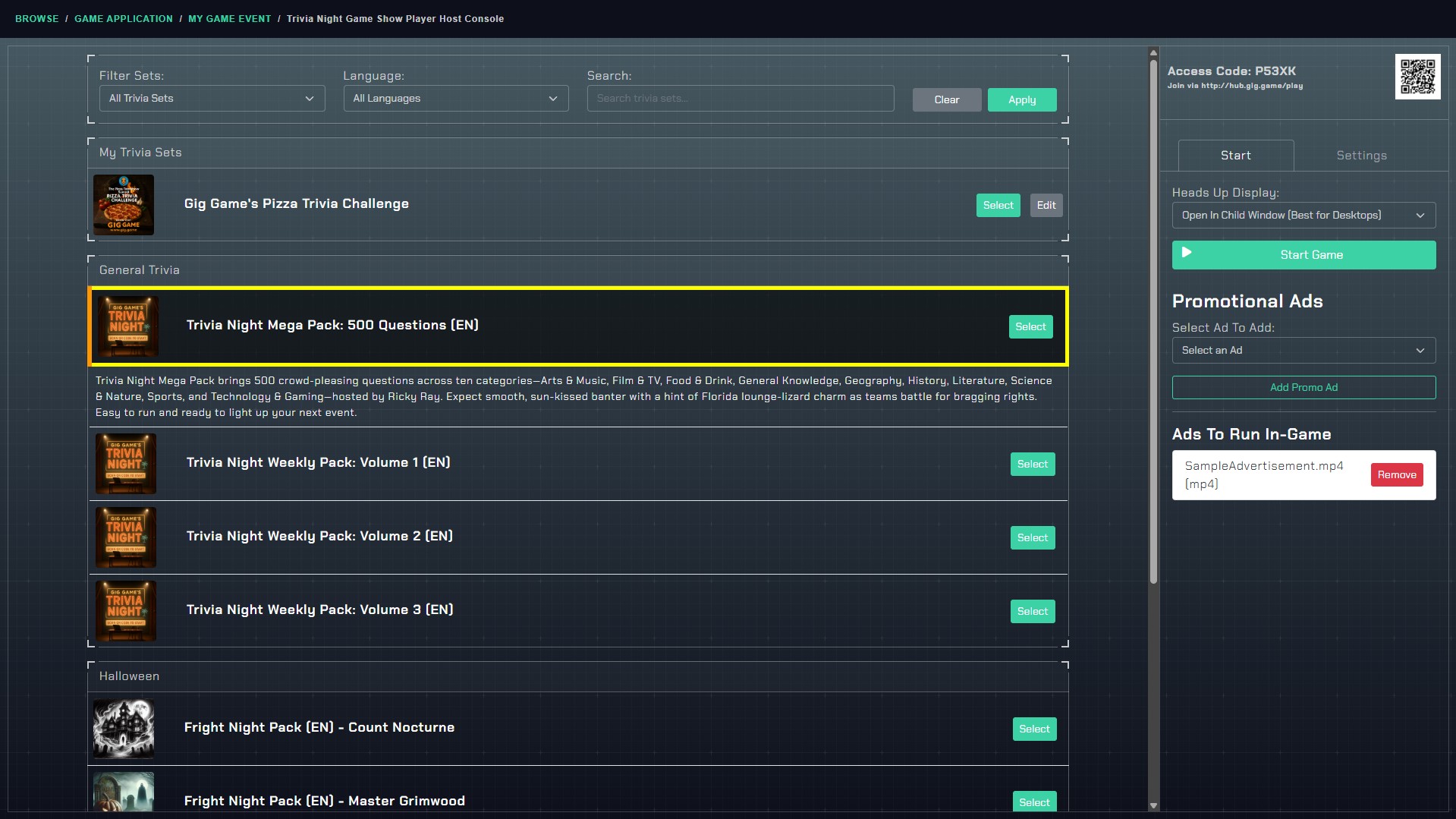
The Host Console (YOU use this)
What it is: The Host Console is your control panel. This is where you:
- Choose a trivia set
- Configure game settings
- Start, pause, advance, or stop the game
- See live player answers
- Control ads and timing
What you do with it:
- Start the game
- Move the game forward when needed
- Monitor who answered and how fast
- Stop or restart the game at any time
Where it’s used: Typically on a laptop or desktop (tablets also work).
👉 Important tip: You do not need to manually manage every screen. Trivia Night automatically progresses unless you pause or intervene.
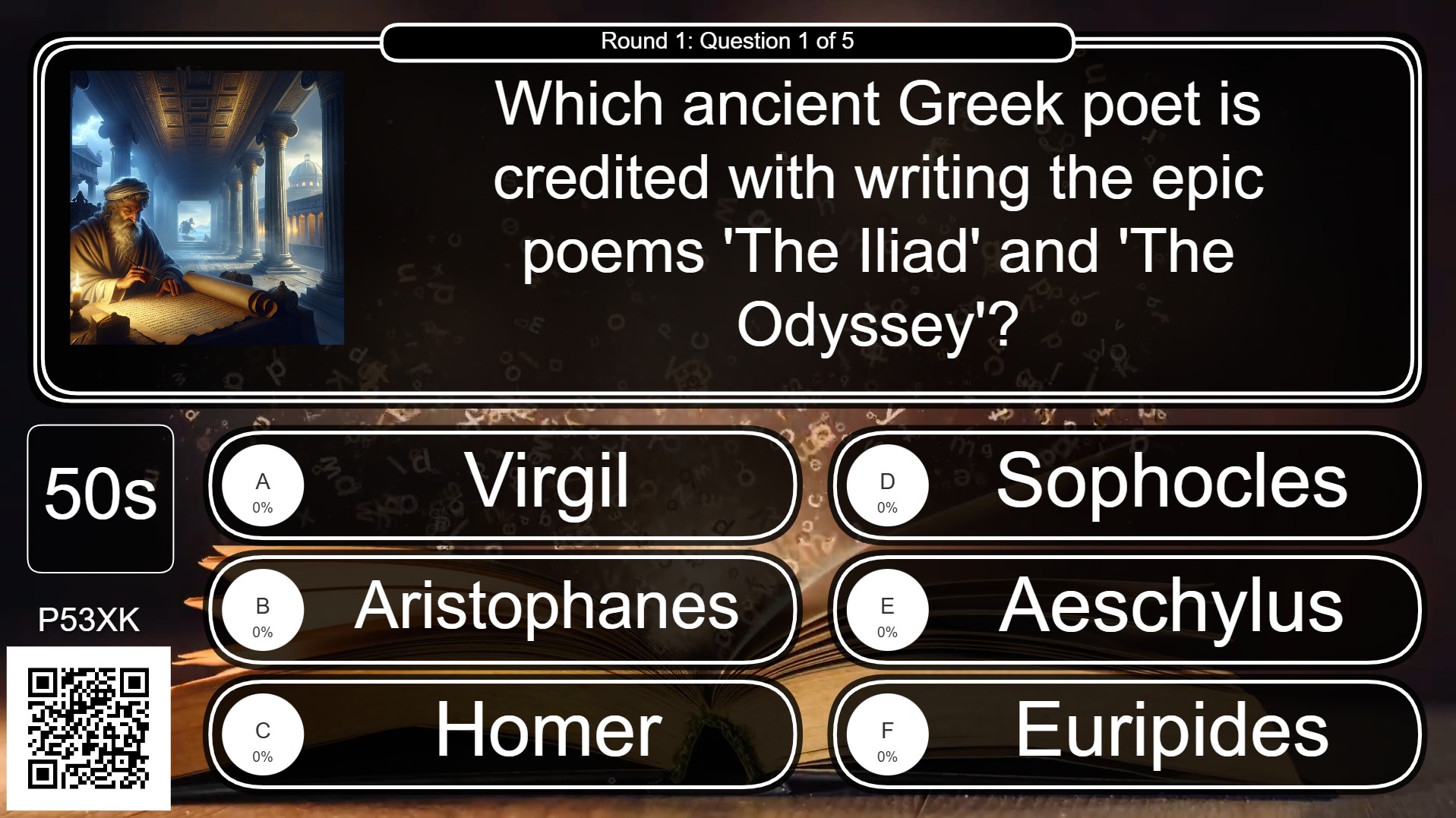
The HUD (Big Screen Display)
What it is: The HUD (Heads-Up Display) is the audience screen—the screen everyone watches.
This is what you put on:
- A TV
- A projector
- A large monitor
What players see on the HUD:
- Game intro and countdown
- Categories and questions
- Live voting bars
- Correct answers and explanations
- Scoreboards and winners
- Special awards (fastest, smartest, comeback team, etc.)
- Promo ads and announcements
👉 Important tip: The HUD automatically syncs with the Host Console. You never have to “mirror” your host screen.

The Controller (Players’ Phones)
What it is: The Controller is the player’s mobile interface, running entirely in their phone browser.
How players use it:
- Scan the QR code or visit the join link
- Enter the Access Code
- Enter a name (or create/join a team)
- Answer questions when they appear
Key idea: Players do not need to download an app. Everything runs instantly in the browser.
Typical Game Flow (Big Picture)
Here’s what a full Trivia Night looks like from start to finish:
- You open the Host Console
- You select a trivia set and settings
- Players join from their phones
- The game intro plays on the HUD
- Rounds and questions begin
- Players answer on their phones
- Scores and winners are shown
- Optional ads play between rounds
- Final winners are announced
- The game resets and waits for the next round
Everything below explains exactly how to do each step.
How to Start a Trivia Game (Step-by-Step)
Step 1: Open the Host Console
Open Trivia Night from the Gig Game Hub.
You’ll see:
- A list of available trivia sets
- Search and filter tools
- Game configuration options
Select the trivia set you want to play.
Step 2: Configure Game Settings (Optional)
Before starting, you can adjust:
Music & host voice
Answer mode
- Accept multiple answers
- First correct answer only
Category selection
- Player-chosen categories
- Fully randomized
- Sequential questions
Rounds and questions per round
Points and time limits
Promo ads
👉 Tip: The default settings work great for most games. You can fine-tune later.
Step 3: Start the Game
Click Start Game.
- The HUD opens (new window or inline)
- The Access Code and QR code appear
- Players can begin joining immediately
Game Settings
Trivia Night’s settings are organized into three tabs in the Host Console:
- Start – How the game launches and how the HUD is displayed
- Timing – Minimum timing rules for automated gameplay
- Settings – Gameplay rules, audio, ads, and scoring
Trivia Night is designed to run in the background. Once launched, it will automatically progress through the game unless you pause or intervene.
Start Tab
The Start tab controls how the game begins and how the Heads-Up Display (HUD) is shown.
Heads-Up Display (HUD)
Location: Start tab → Heads-Up Display
What it controls: How and where the big screen experience appears.
Options:
Open in Child Window Opens the HUD in a separate window. ✅ Best for laptops and desktops connected to TVs or projectors.
Open in Host Console Displays the HUD inline within the Host Console. ✅ Best for phones and tablets.
What the HUD shows:
- Questions and answers
- Timers and live voting
- Scoreboards and winners
- Animations, music, and ads
👉 The HUD is the show. The Host Console is just the control panel.
Start Game / Game Controls
Location: Start tab → Action Buttons
Once a game is started, these options will show in the Host Console.
From here you can:
- Start Game
- Move to Next Screen
- Pause Gameplay
- Resume Gameplay
- Stop Game
👉 Once started, Trivia Night can run unattended.
Settings Tab
The Settings tab controls audio, gameplay rules, ads, and scoring.
Music (On / Off)
Location: Settings tab → Music
What it controls: Background music throughout the game.
- Intro and transitions
- Question screens
- Scores and endings
👉 Music automatically lowers during voice playback.
Host Voice
Location: Settings tab → Host Voice
Options:
- Disable Voice
- Enable Voice (Pre-generated AI)
- Enable Voice (Interactive AI)
Important: Interactive AI voice uses Host AI Tokens. If tokens run out, the system safely falls back to pre-generated voice.
Profanity Filter
Location: Settings tab → Profanity Filter
What it does:
- Blocks offensive language
- Blocks extremist terms
- Blocks trademarked names
- Prevents duplicate team names
👉 Recommended ON for public venues.
Wait to Start
Location: Settings tab → Wait To Start
Options:
- Wait for Player – Manual start
- Auto-start after X minutes
Why it matters: Perfect for background operation in bars, events, and lobbies.
Answer Mode
Location: Settings tab → Answer Mode
Options:
Accept Multiple Answers
- All teams may answer
- All correct answers earn points
Take First Answer Only
- First correct answer wins
- Other answers are locked out
👉 This dramatically changes game intensity.
Category Selection
Location: Settings tab → Category Selection
Options:
- Players choose category
- Randomize categories & questions
- Sequential questions (no categories)
Behavior:
- Player choice times out automatically
- Random selection avoids repeats
- Sequential mode ignores category logic entirely
Game Rounds
Location: Settings tab → Game Rounds
Options:
- Single Game Round
- Use Game Rounds
Rounds allow:
- Different point values
- Difficulty scaling
- Scoreboards between rounds
Number of Questions
Location: Settings tab → Number of Questions / Questions Per Round
Behavior depends on Game Rounds:
- Single Round: Total number of questions
- Multiple Rounds: Questions per round
Points Per Question
Location: Settings tab → Points Per Question (Single Round mode only)
Scoring behavior:
- Faster answers earn more points
- Points decay over time (optional)
- Correct answers always award at least 1 point
How Players Join the Game
Once the game is live:
- Players scan the QR code on the screen OR
- Visit the join link and enter the Access Code
As players join:
- Their names appear in the system
- They can play solo or form teams
- Late players can still join between questions
👉 Good to know: Teams can have multiple players answering together from multiple phones.
During the Game: What You Control
As host, you can:
- Move to the next screen
- Pause the game at any time
- Resume gameplay
- Stop the game early if needed
Most of the time, Trivia Night runs automatically—your job is mainly to keep the energy up.
Promo Ads
What this feature does
Promo Ads let you play audio or video messages during the game.
They are commonly used for:
- Venue promotions
- Sponsor messages
- Announcements
- House rules
- Special offers (“Next drink is half off!”)
Ads automatically play:
- Between rounds
- After score screens
- During breaks in gameplay
Adding Promo Ads to a Game
Before ads can play, they must be added to the game.
In the Host Console:
- Open the Promotional Ads section
- Select an available ad asset
- Click Add Promo Ad
- Confirm it appears in the active ads list
You can:
- Run multiple ads
- Remove ads at any time
- Run the game with no ads at all
Scoring and Special Awards
Trivia Night tracks:
- Correct answers
- Speed of answers
- Participation
At the end of rounds, special awards may appear, such as:
- Fastest Answer
- Most Correct Answers
- Perfect Accuracy
- Biggest Comeback
- Late Joiner
- Too Cool to Play (joined but never answered)
These add personality and fun—especially for live audiences.
Here’s a concise, drop-in section that fits cleanly into the existing documentation. It explains teams vs. solo play and how answers are handled, without going too deep into scoring mechanics.
Teams vs Single Player (How Play Works)
Trivia Night supports both team-based play and single-player play at the same time. Players decide how they want to participate when they join—no setup required by the host.
Single Player Mode
If a player joins and does not create or join a team:
- They automatically play as a solo team
- Their name becomes the team name
- All scoring and tracking applies normally
Solo players:
- Answer questions independently
- Appear on scoreboards like any other team
- Can win rounds and awards
👉 Solo play is perfect for casual or drop-in players.
Team Play
Players may also:
- Create a new team
- Join an existing team
When playing as a team:
- Multiple players can join the same team from different phones
- The team submits one shared answer per question
- The first answer submitted by any team member is the team’s official answer
👉 Teams collaborate in real time—whoever taps first locks in the answer for everyone.
How Trivia Night Picks Questions
Trivia Night uses a smart question selection system designed to avoid repeats, balance difficulty, and keep gameplay fair — even when running all night.
Category-Based Tracking
When categories are enabled:
- Each category tracks its own used questions
- Questions are not repeated until necessary
- Categories reset independently when exhausted
Round Difficulty Influence
When rounds are enabled:
- Each round defines a preferred difficulty
- Questions matching that difficulty are prioritized
- If none are available, the system gracefully falls back
Difficulty order: Easy → Average → Hard → Expert
Preloading & Queues
Behind the scenes:
- One question per category is preloaded
- Questions are queued ahead of time
- The next question is always ready before needed
This guarantees:
- No delays
- No loading screens
- Smooth transitions
Randomization Without Chaos
Trivia Night randomizes:
- Which category is chosen (when applicable)
- Which question within a category is used
But it never:
- Repeats questions unnecessarily
- Ignores round difficulty
- Blocks gameplay if content runs out
Sequential Question Mode
When using Sequential Questions:
- Questions play exactly in defined order
- Category logic is bypassed
- Once finished, the list loops automatically
Built to Run in the Background
Trivia Night is designed so you can:
- Start the game
- Step away
- Let it run all night
The system automatically handles:
- Timing
- Transitions
- Scoring
- Ads
- Endings
- Restarting
You remain in control — without needing to babysit the game.
Host Voice: Pre-Generated vs Dynamic (Interactive) Voice
Trivia Night can include a spoken game-show host that talks players through the game. You control how this voice behaves using the Host Voice setting.
There are two different voice systems, each designed for a different style of game.
Pre-Generated Voice
Location: Settings tab → Host Voice → Enable Voice (Pre-Generated AI)
What it is
Pre-Generated Voice uses a library of professionally recorded voice clips that are selected and played automatically during the game.
These clips cover:
- Game intros and outros
- Round announcements
- Question prompts
- Score announcements
- Generic transitions and reminders
The system randomly selects from multiple variations so the game does not feel repetitive.
How it works
- All voice clips already exist
- No live AI generation occurs
- The game simply chooses the best matching clip
- Audio length is known in advance
- Game timing is extremely predictable
Benefits
- No AI tokens required
- Highly reliable
- Consistent pacing
- Ideal for unattended or all-night gameplay
- Works offline once assets are cached
When to use Pre-Generated Voice
Pre-Generated Voice is best when:
- Running Trivia Night in the background
- Hosting in loud or busy venues
- You want zero risk of delays
- You don’t need personalized commentary
👉 This is the safest “set it and forget it” option.
Dynamic (Interactive) Voice
Location: Settings tab → Host Voice → Enable Voice (Interactive AI)
What it is
Dynamic Voice uses live AI narration to generate spoken dialogue during the game.
Instead of playing fixed clips, the host reacts to what’s happening.
Examples include:
- Mentioning team names naturally
- Reacting to comebacks or fast answers
- Changing tone based on the game state
- Referencing newly joined teams
- Adjusting language to the trivia theme
How it works
The game reaches a narration moment (intro, round start, score, etc.)
A structured prompt is created based on:
- Current round
- Team names
- Scores and standings
- New or active teams
The AI generates spoken dialogue
The audio is streamed to the HUD
Gameplay timing automatically adapts to the audio length
AI Tokens (Important)
Dynamic Voice uses Host AI Tokens.
Tokens are consumed only when dynamic voice is generated
Not every screen uses AI (only narration moments)
If tokens run out:
- The system automatically falls back to Pre-Generated Voice
- The game continues without interruption
👉 There is no failure state if tokens are exhausted.
Benefits
- Feels live and personalized
- Creates a true “game show” experience
- Makes teams feel acknowledged
- Adapts to different play styles and pacing
Trade-offs
- Uses AI tokens
- Audio length varies slightly
- Slightly less predictable than pre-generated voice
When to use Dynamic Voice
Dynamic Voice is best when:
- You want maximum personality and engagement
- The host wants the game to feel “alive”
- Team identity matters
- You are actively hosting or monitoring the game
How Voice Affects Game Timing
Regardless of voice mode:
- Trivia Night never cuts off audio
- Timers automatically extend if narration runs long
- Transitions wait until voice playback finishes
This ensures:
- No rushed questions
- No overlapping audio
- Smooth, professional pacing
Summary: Which Should I Use?
| If you want… | Use |
|---|---|
| Zero maintenance | Pre-Generated Voice |
| Background operation | Pre-Generated Voice |
| Maximum personality | Dynamic Voice |
| Team call-outs | Dynamic Voice |
| No AI token usage | Pre-Generated Voice |
Final Note
You can switch voice modes at any time before starting a game.
No matter which mode you choose, Trivia Night always prioritizes:
- Smooth flow
- Clear audio
- Uninterrupted gameplay
First-Time Host Checklist
If this is your first game, do this:
- ✅ Test the HUD on your TV or projector
- ✅ Make sure audio is audible in the room
- ✅ Start the game before players arrive
- ✅ Let players know phones are required
- ✅ Encourage team names early
- ✅ Don’t rush—let the game breathe