Welcome to the Run Q-MC
Run Q-MC turns a traditional DJ request list into a live, crowd-driven experience.
Instead of paper slips or shouting at the DJ booth, guests use their phones to submit songs, vote on requests, and watch the queue evolve in real time on a big screen.
What is the Run Q-MC?
Run Q-MC is a real-time DJ music request queue with live audience voting.
It lets you:
Accept song requests from unlimited players
Prevent duplicate requests from the same player
Show the full queue to everyone
Let players heart (vote) for any song
Instantly reflect votes and changes across:
- The Host Console
- The Big Screen HUD
- Every player’s phone
Think of it as “Twitch chat meets a DJ request board.”
The Main Parts of the Run Q-MC
Understanding these three parts will make everything else easy.
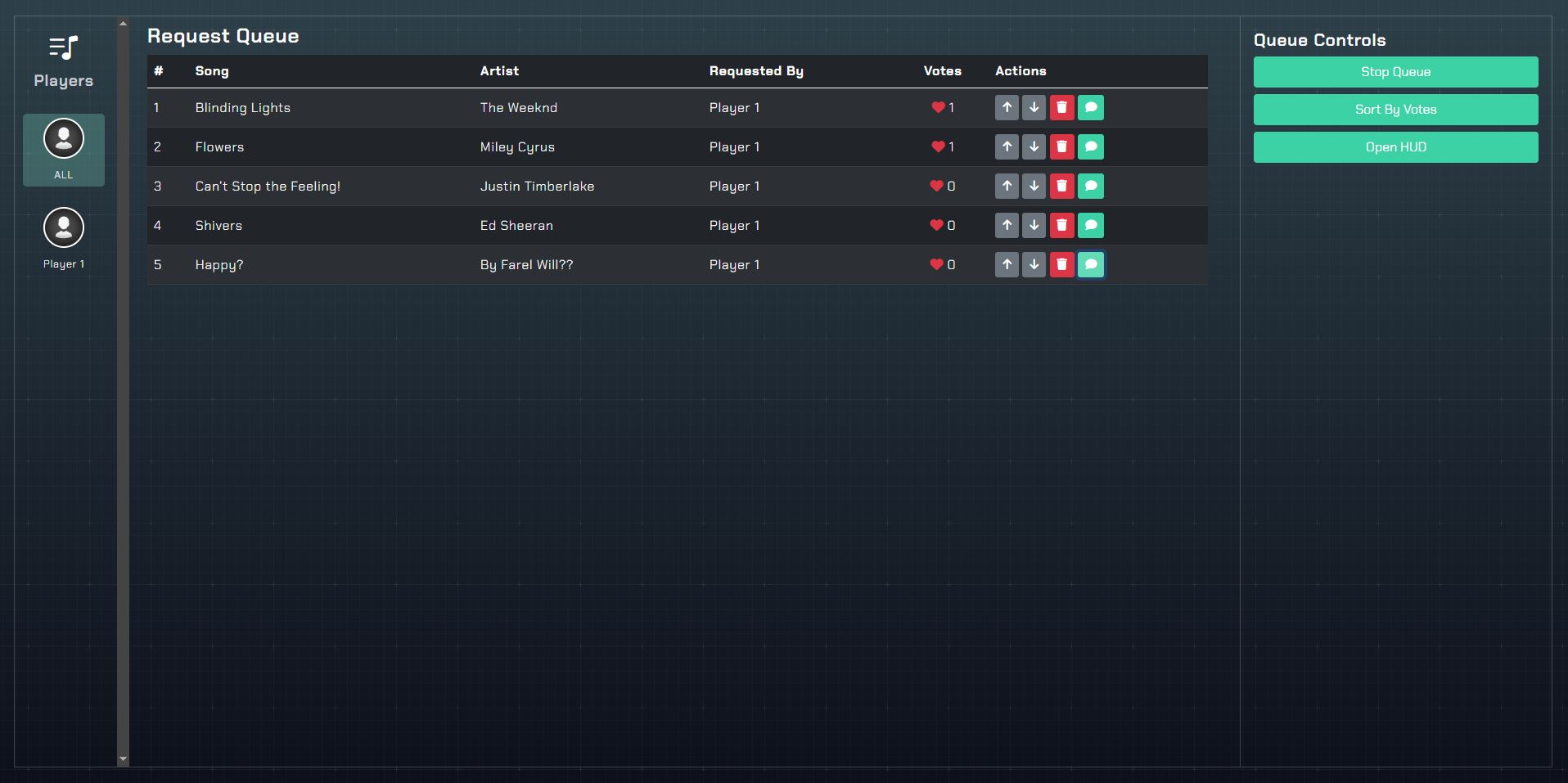
The Host Console (YOU use this)
What it is: The Host Console is your control center. This is where the DJ, host, or venue operator manages the entire queue.
What you do with it:
- Start and stop the queue
- See all song requests in a table
- View who requested each song
- See live heart (vote) counts
- Reorder songs manually (move up/down)
- Delete any request
- Send private messages to players
- Change the HUD background
- Play promo ads (audio or video)
Where it’s used: Typically on a laptop, desktop, or tablet.
👉 Important tip: If you don’t start the queue, players can join — but they cannot submit requests.
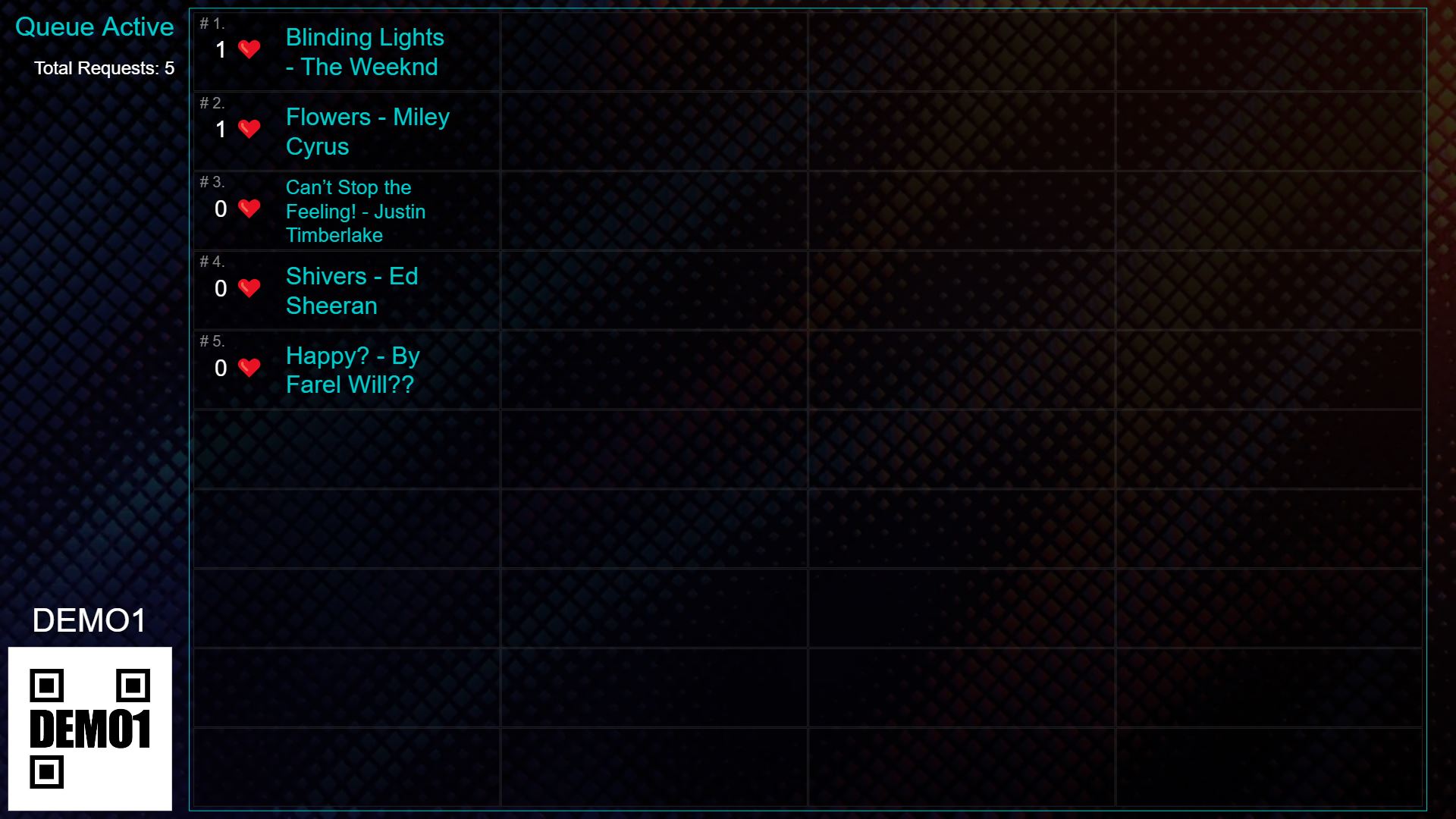
The HUD (Big Screen Display)
What it is: The HUD is the public display shown on a TV, projector, or LED wall.
What players see on the HUD:
- Whether the queue is Active or Paused
- The full list of song requests
- Song titles and artists
- Live heart (vote) totals
- The total number of requests
- Animated video backgrounds
- Promo ads when triggered by the host
The HUD updates instantly whenever:
- A song is added
- A song is removed
- Votes change
- The queue is reordered
👉 Important tip: The HUD is read-only. Players interact only through their phones.
The Controller (Players’ Phones)
What it is: The Controller is the player’s mobile experience — no app install required.
How players use it:
- Scan the QR code or visit the join link
- Enter the Access Code
- Add a song request (title + optional artist)
- Edit or delete their own requests
- See their current position in the queue
- Heart (vote for) any song in the queue
- Receive messages from the host
Key idea: Players do not need to download an app — everything runs in their mobile browser.
Typical Game Flow (Big Picture)
You open the Host Console
You start the queue
Players join using their phones
Players submit song requests
Players heart (vote) for songs
You manage playback order using:
- Votes
- Manual reordering
- Your DJ judgment
Everything below explains exactly how to do each step.
How to Start a Run Q-MC Session (Step-by-Step)
Step 1: Open the Host Console
Open Run Q-MC from the Gig Game Hub on your device.
You’ll immediately see:
- The empty request table
- The Access Code
- The QR code
- Queue controls on the right
Step 2: Start the Queue
Click Start Queue.
This instantly:
- Enables player submissions
- Updates the HUD to “Queue Active”
- Updates every connected phone
You can pause submissions at any time by clicking Stop Queue.
How Players Join the Game
Once the queue is active:
- Players scan the QR code on the screen OR
- Visit the join link and enter the Access Code
As players join and submit requests:
- Their names appear in the Host Console
- Their requests appear in the queue
- Everyone sees the same live list
Players can join at any time, even after the queue has started.
How Song Requests Work
Adding a Request
- Each player can submit songs from their phone
- Song title is required
- Artist name is optional
- Players cannot submit the same song twice
When a request is added:
- The player sees their queue position
- The HUD updates instantly
- All players see the new request
Editing or Deleting Requests
Players can:
- Edit only their own requests
- Delete only their own requests
Hosts can:
- Delete any request instantly
Voting with Hearts (Crowd Power)
Every song in the queue can be hearted (voted).
- Each player can heart or un-heart any request
- One heart per player per song
- Heart counts update instantly everywhere
Hosts can optionally:
- Sort by votes
- Switch back to manual position order
This lets you decide whether the crowd or the DJ has priority — or a mix of both.
Promo Ads
What this feature does
Promo Ads let you play audio or video messages during the session.
They are commonly used for:
- Venue promotions
- Sponsor messages
- Announcements
- House rules
- Special offers (“Next drink is half off!”)
Ads temporarily replace the queue on the HUD, then return automatically.
Adding Promo Ads to a Game
Before ads can play, they must be uploaded as assets.
Supported formats:
- Audio + image (MP3 + JPG)
- Video (MP4)
Once uploaded:
- Open the Play Ad Promo menu in the Host Console
- Select an ad
- Click Play
The HUD will handle playback automatically.
First-Time Host Checklist
If this is your first Run Q-MC session, do this:
- ✅ Open the Host Console
- ✅ Click Start Queue
- ✅ Open the HUD on a big screen
- ✅ Tell players to scan the QR code
- ✅ Add a test request from your phone
- ✅ Heart a song to see voting work
- ✅ Try reordering a request
- ✅ (Optional) Play a promo ad
Once you’ve done that — you’re ready to run the room.
Final Thought
Run Q-MC doesn’t replace the DJ — it gives the crowd a voice without losing control.
You decide how much power the votes have. The system just makes it fun, fast, and fair. 🎶🔥