Welcome to Mobo Bingo
What is Mobo Bingo?
Mobo Bingo is a modern, hosted bingo game designed for:
- Live events
- Bars & venues
- Parties, fundraisers, and corporate events
Unlike traditional bingo:
- Players usually play on their own mobile phones
- The host controls the game from a Host Console
- A shared HUD (big screen display) shows calls, instructions, and visuals
- Paper bingo cards can also be printed for offline or mixed play
You (the host) are always in control:
- You decide how players win
- You control when and what gets called
- You can automate calling or run it manually
- You can mix mobile players and printed cards in the same game
The Main Parts of Mobo Bingo
Understanding these three parts will make everything else easy.
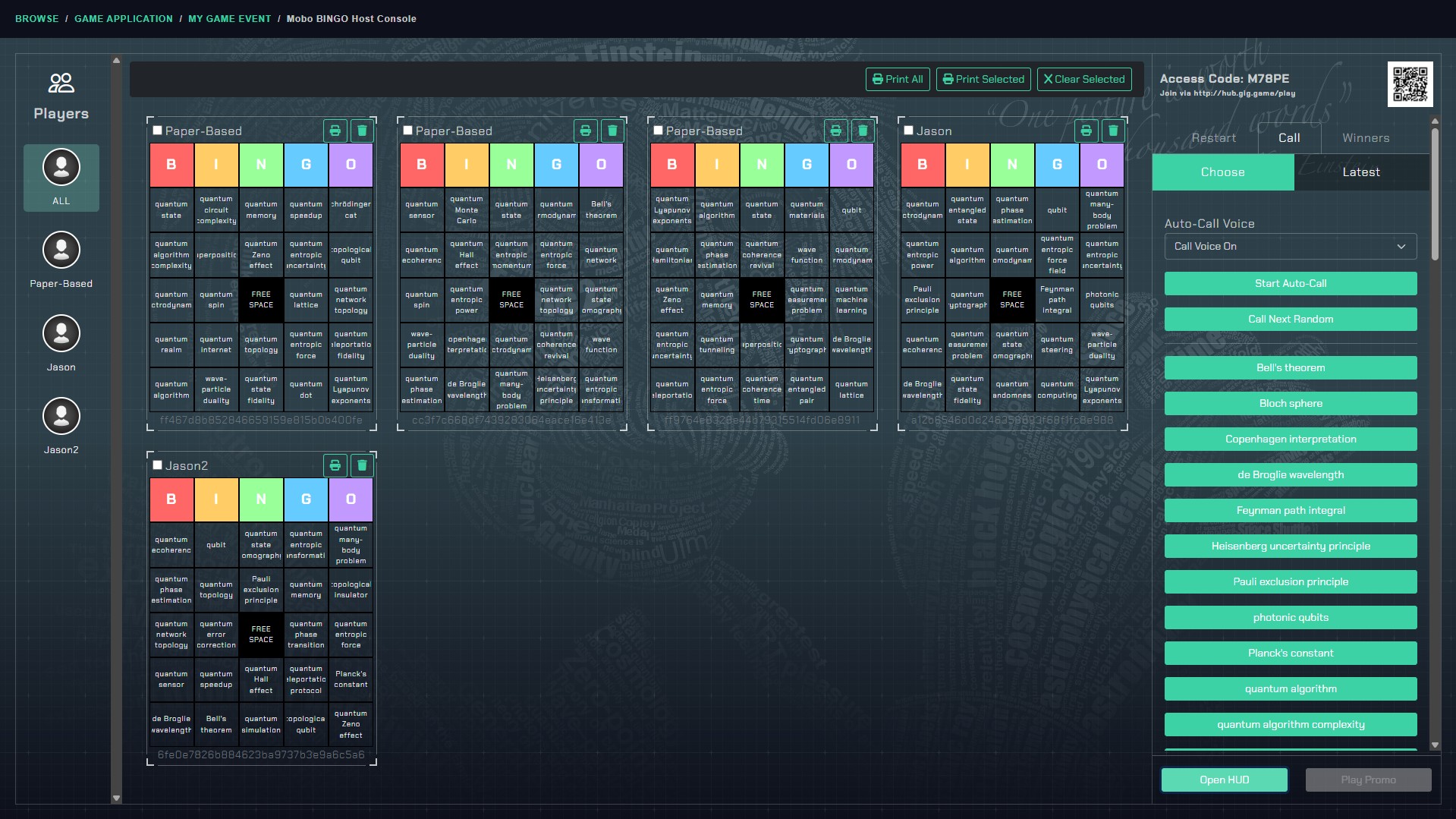
The Host Console (YOU use this)
What it is: The Host Console is your control panel. You run the entire game from here.
What you do with it:
- Start and restart games
- Choose how players win
- Call bingo spaces (manually or automatically)
- Add or remove player cards
- Print bingo cards
- See winners and scores
- Control ads, themes, and visuals
Where it’s used: Typically on a laptop, desktop, or tablet.
👉 If you can see buttons like Start Round, Call Next, Winners, and a list of players — you are in the Host Console.
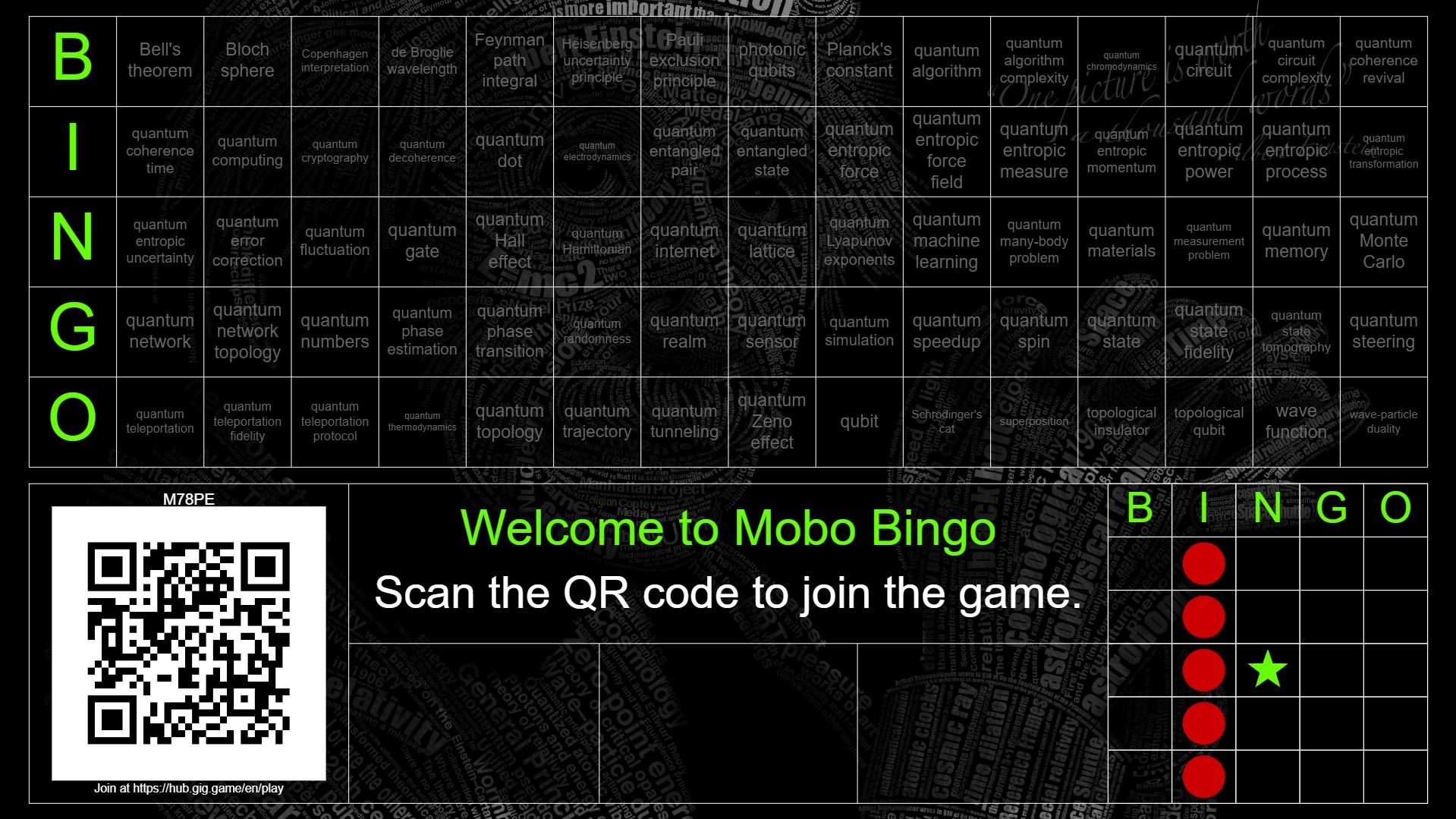
The HUD (Big Screen Display)
What it is: The HUD is the audience-facing display — usually shown on a TV, projector, or large screen.
What players see on the HUD:
- A QR code and join instructions
- Recently called spaces
- The bingo board
- Visual animations
- Background themes or videos
- Promo ads (if enabled)
What the HUD does NOT do:
- It does NOT control the game
- It does NOT call numbers
- It does NOT manage players
👉 Think of the HUD as the scoreboard + stage screen.
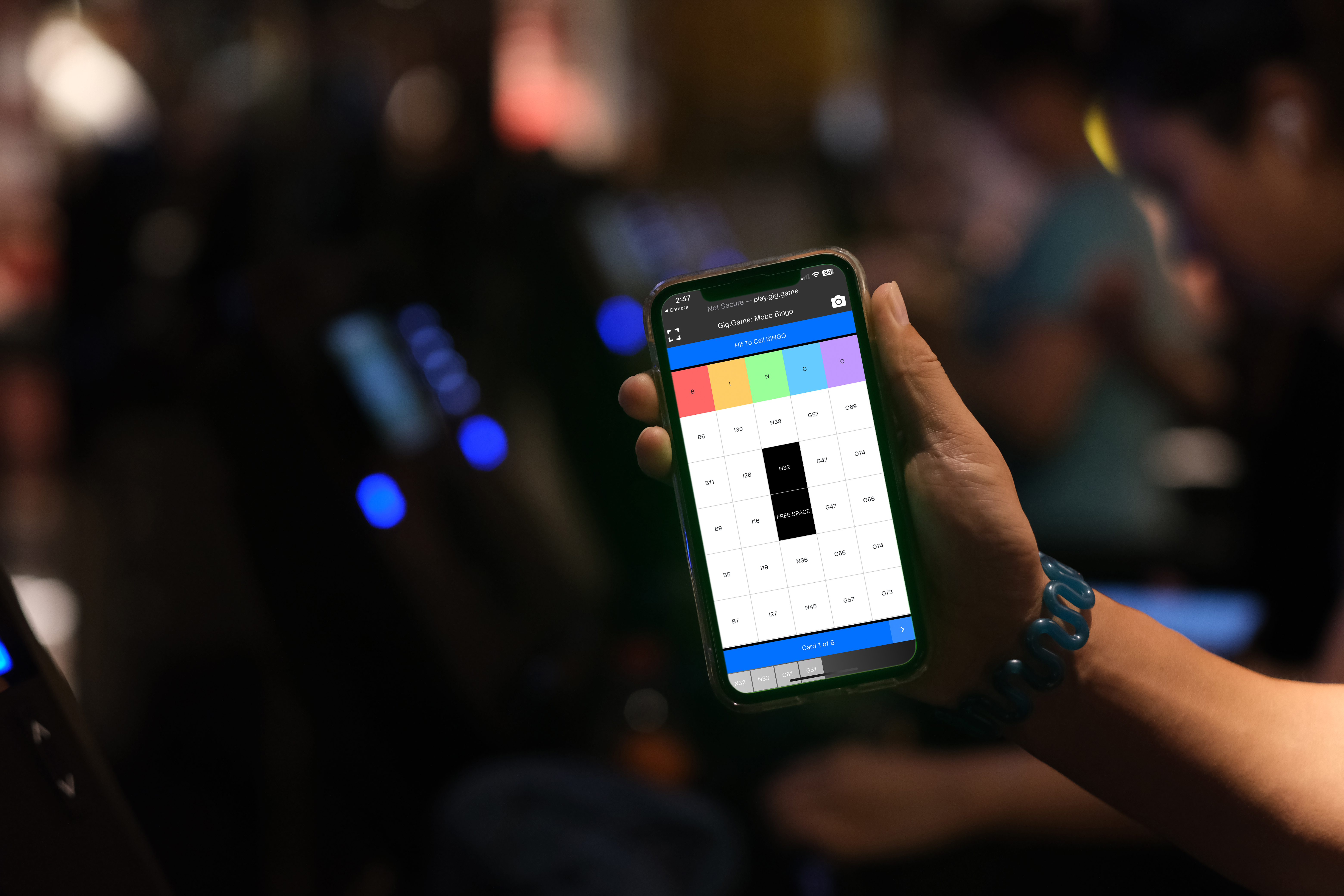
The Controller (Players’ Phones)
What it is: The Controller is the player’s mobile experience.
How players use it:
- They scan the QR code or visit the join link
- Enter the Access Code
- Receive bingo cards on their phone
- Tap spaces as they are called
- Press BINGO when they win
Key idea: Players do not need to download an app — it runs in their mobile browser.
Typical Game Flow (Big Picture)
- You open the Host Console
- You start a round and choose settings
- Players join on their phones
- Cards are generated (mobile or printed)
- You call spaces (manually or automatically)
- Players call BINGO
- Winners are displayed
- You restart or close the round
Everything below explains exactly how to do each step.
How to Start a Bingo Game (Step-by-Step)
Step 1: Open the Host Console
Open the Host Console in your browser
You’ll immediately see:
- A Players list on the left
- A card display area in the center
- A Settings panel on the right
- An Access Code and QR code
👉 Do not worry if no players are present yet — that’s normal.
Step 2: Go to the “Game” Tab
On the right-hand panel:
- Click the Game tab
- If no game is running, you’ll see Start Round
- If a game is already running, it will say Restart Round
Step 3: Choose How Players Win (Game Rules)
Before starting, you must choose how bingo is won.
Win Pattern Options
You can choose one:
Standard (Up, Down, Diagonal) The classic bingo rules. Most common choice.
Cover Entire Card Every space must be filled.
Center Cross A cross through the middle of the card.
Outside Border Only the outer edge of the card counts.
👉 This applies to all players for the round.
Step 4: Set Cards and Winners
Initial Cards Per Player
- Choose how many cards each player starts with
- Example:
1is typical,2–3for faster games
👉 Fundraising Tip (Nonprofits & Events):
You can set Initial Cards Per Player to 0 and manually add cards as they are sold or handed out.
This is ideal for fundraisers where:
- Players purchase bingo cards individually
- Cards are distributed at a check-in table
- Hosts want full control over card sales and quantities
Cards can be added at any time from the Host Console, even after the game has started.
Winners Per Game
Choose how many winners are allowed
Example:
1= first winner only3= first three winners
👉 When the winner limit is reached, the game stops accepting new winners.
Step 5: Click “Start Round”
Click Start Round to open the game setup window.
Step 6: Choose the Bingo Style (Layout Type)
You’ll choose what kind of bingo spaces are used:
Layout Options
Standard Bingo (B1, B2, … O75) Traditional bingo calls like “B12”.
Standard Bingo – Numbers Only Calls are just numbers like “12”.
Randomized Numbers Non-traditional numeric play.
Word Bingo (WORDO) Uses words or phrases instead of numbers.
Step 7 (Optional): Word Bingo Setup
If you choose Word Bingo:
You must provide at least 75 unique words or phrases.
You can:
- Generate words with AI (type a topic and click Generate)
- Paste your own list (one word or phrase per line)
👉 The game will not start unless there are 75 unique entries.
Step 8: Start the Game
Click Start.
🎉 The round is now live.
How Players Join the Game
Once the game starts:
- Players scan the QR code on the screen OR
- Visit the join link and enter the Access Code
As players join:
- Their names appear in the Players list
- Cards are automatically created for them
👉 Players can join before or after the game starts.
Managing Bingo Cards (Print/Save/Load)
Mobile Cards (Most Common)
- Players automatically receive cards on their phones
- They tap spaces as they’re called
- They press BINGO when they win
You can:
- Click a player → Add Card
- Delete cards if needed
Printed Cards (Paper Play)
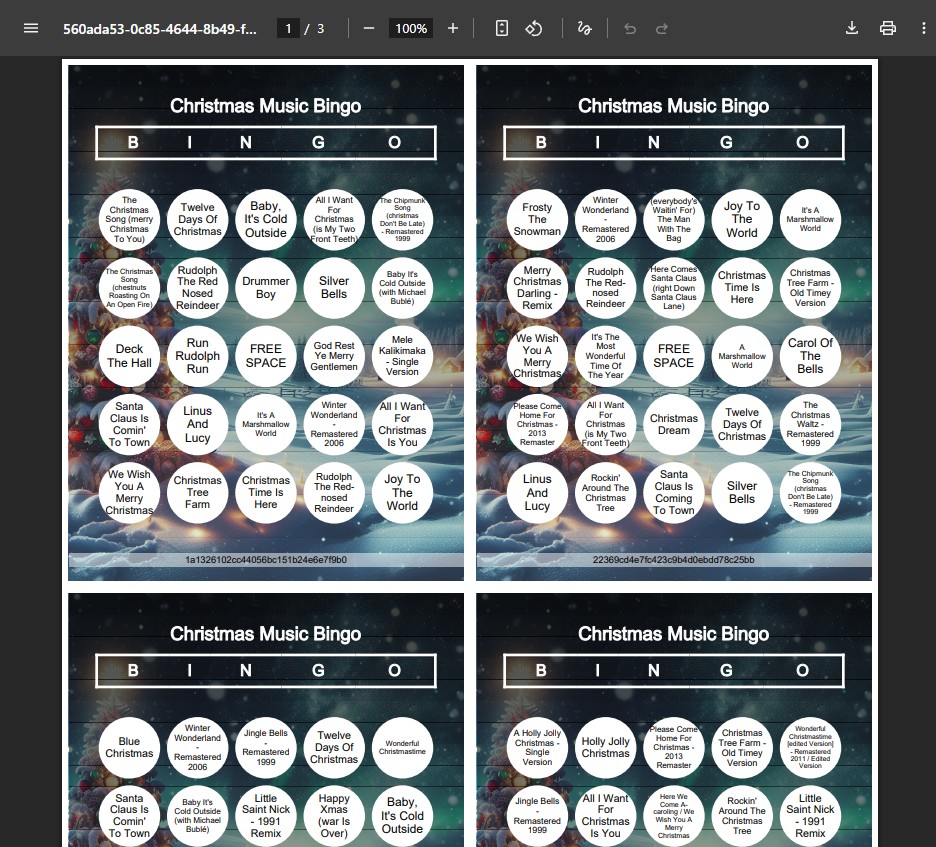
Mobo Bingo supports paper bingo cards, even during live games. Printed cards can be used on their own or mixed seamlessly with mobile players.
This makes Mobo Bingo ideal for venues that want reusable, pre-printed cards.
Print Options
From the Host Console, you can:
- Print All cards
- Print Selected cards
- Print individual cards
Print Customization
Before printing, you can choose:
- Card title
- Background color or image
- Circle or square spaces
Each printed card includes a unique Card ID at the bottom.
👉 When a player calls BINGO, simply verify that the printed Card ID matches the ID shown in the Host Console. Printed players are fully supported and can win normally.
Saving, Loading, and Reusing Bingo Sets
Mobo Bingo allows you to save an entire bingo setup as a Bingo Set. This enables long-term reuse of printed cards without reprinting.
This makes it possible to:
- Pre-print bingo cards ahead of time
- Reuse the same printed cards across multiple games
- Run consistent, repeatable events
This feature is especially useful for bars, weekly events, fundraisers, and venues using laminated or reusable cards.
What Is a Bingo Set?
A Bingo Set is a saved snapshot of a bingo game that includes:
- The bingo layout type (Standard, Numbers Only, WORDO, etc.)
- The exact list of bingo spaces (numbers or words)
- The exact card layouts used for printed cards
- Card IDs used for verification
When loaded later, players using those same printed cards will match perfectly.
👉 Think of a Bingo Set as a frozen snapshot of your cards and game content.
When to Use Bingo Sets
Use Bingo Sets if you want to:
- Print cards once and reuse them every week
- Avoid wasting paper
- Run recurring themed bingo nights
- Ensure fairness with identical card layouts
- Mix printed cards with mobile players consistently
Saving a Bingo Set
Save a Bingo Set after cards have been generated.
Step 1: Prepare Your Game
- Start a round normally
- Choose your bingo style (numbers, words, etc.)
- Ensure cards are generated (especially printed cards)
👉 You do not need active players to save a Bingo Set.
Step 2: Click “Save Working Bingo Set”
- In the Host Console, open the Game tab
- Click Save Working Bingo Set
- Enter a Set Title (example: “Wednesday Trivia Bingo – January”)
- Click Save
✅ The Bingo Set is now stored and reusable.
What Gets Saved Automatically
When you save a Bingo Set, Mobo Bingo stores:
- The full list of bingo spaces
- The layout type
- All printed card layouts
- Card IDs used for verification
This ensures printed cards will always match future games.
Loading a Saved Bingo Set
Loading a Bingo Set restores exactly the same cards and content.
Step 1: Open the Start Round Menu
- Click Start Round (or Restart Round)
- In the modal, click Load Saved
Step 2: Select a Bingo Set
- Choose a Bingo Set from the list
- Click Load
🎉 The game starts using:
- The saved playlist
- The saved card layouts
- The same printed Card IDs
👉 This is how you safely reuse printed cards.
Important Notes When Loading Sets
- Printed cards must match the loaded Bingo Set
- Do not mix printed cards from different sets
- Mobile players will receive cards compatible with the set
- You can still add or remove cards after loading
Best Practice: Reusing Printed Cards
To reuse printed cards across games:
- Save a Bingo Set once
- Print cards from that set
- Laminate or store the cards
- Load the same Bingo Set every time you play
- Verify winners using the printed Card ID
👉 This eliminates reprinting and ensures fairness.
Deleting a Bingo Set
Delete Bingo Sets you no longer need to keep your list clean.
How to Delete a Bingo Set
- Click Start Round
- Click Load Saved
- Select a Bingo Set
- Click Delete
- Confirm deletion
⚠️ Deleted Bingo Sets cannot be recovered.
When You Should NOT Delete a Set
Do not delete a Bingo Set if:
- You still have printed cards in circulation
- You plan to reuse those cards in the future
Once deleted, printed cards from that set will no longer match any game.
Calling Bingo Spaces (Running the Game)
Once the game is running, open the Call tab.
Manual Calling
Call Next Random
- Calls a random unused space
- Announces it visually and (optionally) by voice
Call a Specific Space
- Click any available space from the list
- Disabled spaces are already called
Auto-Call (Hands-Free Mode)
You can let the game call automatically.
Start Auto-Call
Click Start Auto-Call
Set:
- Time between calls
- Optional ads every X calls
Click Start
The game will:
- Call spaces automatically
- Pause for ads (if enabled)
- Stop when winners are reached
Stop Auto-Call
- Click Stop Auto-Call at any time
Winners & Scores
Open the Winners tab to see:
Bingo Winners (This Round)
- Player name
- Exact time bingo was called
Multi-Game Winners
- Tracks wins across multiple rounds
- Can be cleared manually
👉 Bingo claims are automatically validated by the system.
Optional Features (Themes, Ads, HUD)
These features are not required to run a successful bingo game, but they can greatly improve the look, feel, and flow of your event—especially for larger groups or public venues.
You can use all, some, or none of these features depending on how simple or polished you want your game to be.
Themes & Backgrounds
What this feature does
Themes and backgrounds control what players and the audience see behind the bingo game. They affect:
- The Host Console background
- The HUD (big screen) background
- The overall atmosphere of the game
Think of this as setting the mood for your event.
Option 1: Generate a Theme with AI
This option creates a custom background image using AI.
How to use it:
Click Theme Generator
Type a short description of a theme Examples:
- “Rock concert stage”
- “Country fair at sunset”
- “Neon retro arcade”
- “Beach party”
Click Create Theme with AI
What happens:
The system generates a themed image
The background updates instantly for:
- The Host Console
- The HUD
- All players
👉 This is great when you want something fast, fun, and visually impressive without designing anything yourself.
Option 2: Upload Your Own Image
You can use your own photo or artwork instead of AI.
How to use it:
- Open Theme Generator
- Click Upload Your Own Image
- Choose an image from your device (camera photos work too)
- The image is uploaded and applied as the background
Common uses:
- Venue logo or branding
- Event flyer or sponsor image
- Holiday or themed artwork
- Custom designs made by your team
Option 3: Remove the Theme
If you want to go back to the default look:
- Open Theme Generator
- Click Remove Theme
The game returns to the standard Mobo Bingo background.
👉 You can change or remove themes even while a game is running.
Promo Ads
What this feature does
Promo Ads let you play audio or video messages during the game.
They are commonly used for:
- Venue promotions
- Sponsor messages
- Announcements
- House rules
- Special offers (“Next drink is half off!”)
Ads can be played manually or automatically during Auto-Call.
Adding Promo Ads to a Game
Before ads can play, they must be added to the game.
How to add ads:
- Go to the Startup / Restart tab
- Find the In-Game Ads section
- Select an ad from the dropdown list
- Click Add Ad To Game
Once added:
- The ad appears in the list
- It becomes available for manual or automatic playback
👉 You can add or remove ads before or during a game.
Playing an Ad Manually
You can play an ad at any moment when Auto-Call is OFF.
How to play an ad manually:
- Click Play Promo
- Choose an ad from the list
- Click Play
What happens:
- The ad plays on the HUD
- Audio/video is played as designed
- The game temporarily pauses while the ad finishes
👉 This is perfect for announcements or sponsor shout-outs between calls.
Auto-Playing Ads During Auto-Call
If you are using Auto-Call, ads can play automatically.
How it works:
- You choose how often ads play (for example: every 5 calls)
- The system pauses the game
- Plays the ad
- Automatically resumes calling afterward
Important notes:
Auto-ads only play if ads are added to the game
If a player calls BINGO during an ad:
- The win is saved
- The announcement appears after the ad finishes
👉 This keeps the game fair while still allowing uninterrupted promotions.
HUD Display
- Click Open HUD
- Use for TVs or projectors
- Shows join instructions, calls, and visuals
Restarting or Ending a Game
Restart Round
- Keeps players cards
- Clears calls
Close Round / Reset Cards
- Ends the session completely
- Clears cards and state
First-Time Host Checklist
If this is your first game, do this:
- Start Round
- Choose Standard Bingo
- Set 1 card per player
- Set 1 winner
- Start the game
- Ask players to scan the QR code
- Use Call Next Random
- Celebrate your first BINGO 🎉